
IPTV Australia on MAG Box – Complete Setup & Configuration Guide for 2026
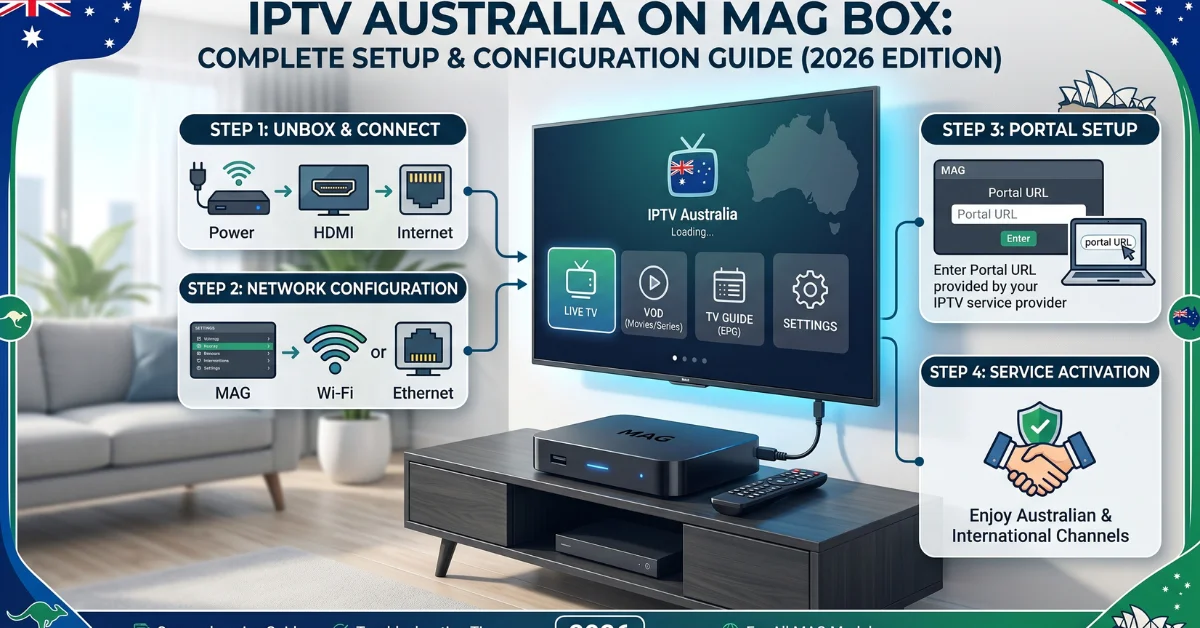
IPTV Australia on MAG Box – Complete Setup & Configuration Guide for 2026
Using a MAG Box for IPTV can provide a straightforward way to watch internet-delivered television on a compatible TV. If you want to use IPTV Australia on MAG Box, the main process involves connecting the device to the internet, locating its MAC address, entering the portal information supplied by your legitimate IPTV provider, and checking that the service loads correctly.
This guide explains the MAG Box IPTV setup process step by step, including network configuration, portal settings, activation considerations, streaming performance, common problems and practical troubleshooting. The exact menu names can vary between MAG Box models and firmware versions, so use the instructions that match your device.
Before starting, make sure your IPTV subscription is from a legitimate provider and that you are authorised to access the channels and content included with your subscription. IPTV is a delivery technology; the legality of a particular service depends on the content rights and permissions associated with that service.
What Is a MAG Box and How Does IPTV Work?
A MAG Box is a dedicated set-top device designed for internet-based television and media services. Unlike a traditional television receiver that relies primarily on broadcast or cable signals, IPTV delivers television content through an internet connection.
IPTV stands for Internet Protocol Television. The technology uses internet protocols to deliver video and other media to a compatible device. You can learn more about the underlying technology through this Internet Protocol Television overview.
With a compatible IPTV service, a MAG Box can connect to a provider’s portal and retrieve the television interface, channel information and other content made available through that service.
For Australian viewers, a MAG Box can be useful when a provider specifically supports MAG devices. However, compatibility should always be confirmed before purchasing a subscription because not every IPTV service uses the same delivery method or supports MAG portal connections.
What You Need Before Setting Up IPTV on a MAG Box
The setup is relatively simple when you already have the required information. Prepare the following before changing any settings:
- A compatible MAG Box connected to your television.
- A reliable home internet connection.
- An Ethernet cable if you plan to use a wired connection.
- Your IPTV subscription or service activation details.
- The IPTV provider’s portal URL, if the service uses a MAG portal.
- The MAG Box MAC address, usually required when activating a portal-based service.
- Your television and remote control.
It is worth checking the provider’s device requirements before subscribing. Some services may support a MAG Box through a portal while others may only provide M3U playlists, Xtream Codes credentials or an IPTV application.
If you are still comparing services, review the available IPTV plans and pricing and confirm which connection method is supported before making a decision.
Step 1: Connect Your MAG Box to the Internet
The first part of an IPTV setup is establishing a stable internet connection. A MAG Box normally works best when the network connection is reliable and consistent.
Using an Ethernet Connection
- Connect one end of an Ethernet cable to your router.
- Connect the other end to the Ethernet port on the MAG Box.
- Turn on the television and MAG Box.
- Allow the device to establish a network connection.
- Open the network settings if the device does not connect automatically.
A wired connection can be a practical choice if your router is close to the television because it avoids some of the interference and signal-strength issues that can occur with wireless networking.
Using Wi-Fi
If your MAG Box model supports Wi-Fi, open the network settings and select your wireless network. Enter the correct Wi-Fi password and wait for the device to establish a connection.
For streaming, place the router and device where possible to reduce obstacles and interference. If the MAG Box is located far from the router, a wired Ethernet connection or a suitable home-network solution may provide a more consistent connection.
Step 2: Find the MAG Box MAC Address
The MAC address is an important part of many portal-based IPTV configurations. It identifies the network interface of your device and may be required by the IPTV provider when activating your subscription.
The exact location of the MAC address can vary depending on the MAG Box model and firmware. It may be displayed in the device information, network settings or on information shown during the initial setup.
When you find it, record the address carefully. A single incorrect character can prevent the provider from correctly associating the subscription with your device.
Do not share your device information publicly. Provide it only through the legitimate activation or support process of the IPTV provider you have chosen.
Step 3: Add the IPTV Portal to Your MAG Box
Once your internet connection is working and your IPTV provider has supplied a portal address, you can configure the portal on the MAG Box.
The menu names can differ between MAG models and firmware versions, but the general process is similar:
- Open the MAG Box main menu.
- Navigate to the settings section.
- Look for the network or portal-related settings.
- Open the portal configuration area.
- Locate the portal URL field.
- Enter the portal address that your IPTV provider has provided.
- Save the configuration.
- Restart the MAG Box if required.
Enter the portal address exactly as provided. Avoid adding spaces or changing characters. If the provider has supplied a specific URL format, use that format rather than guessing a different address.
If your service does not provide a MAG-compatible portal, do not assume that an M3U link or Xtream Codes login can simply be entered into the same portal field. Those are different IPTV connection methods and may require a different compatible application or device.
Step 4: Restart and Allow the Portal to Load
After saving the portal configuration, restart the MAG Box according to the device’s normal restart procedure. The box should reconnect to the internet and attempt to load the configured portal.
If you have activated the service correctly and the portal is compatible with your MAG Box, you should see the provider’s IPTV interface.
The first connection may take longer than subsequent connections. Give the device enough time to complete the connection before changing the settings repeatedly.
If the portal does not load, check the portal address, network connection and activation status before making additional changes.
Step 5: Check Channels and Streaming Quality
Once the IPTV interface loads, test several channels rather than checking only one. This can help determine whether the problem is related to a particular stream or the wider connection.
Check the following:
- Whether the channel list loads correctly.
- Whether live channels start playing.
- Whether audio and video remain synchronised.
- Whether the stream stops or buffers repeatedly.
- Whether the electronic programme guide, if provided, displays correctly.
- Whether switching between channels works normally.
Streaming quality depends on more than the MAG Box itself. Your internet connection, local network, provider infrastructure, stream quality and the resolution of the content can all affect playback.
HD, Full HD and 4K streams can place different demands on a network. A connection that handles standard-definition streaming comfortably may not perform the same way with higher-resolution video.
Recommended Network Practices for IPTV Australia
For Australian viewers using IPTV on a MAG Box, network stability is generally more useful than simply focusing on the maximum advertised internet speed.
Consider these practical steps:
- Use Ethernet when a wired connection is convenient.
- Keep your router firmware and network equipment up to date.
- Reduce unnecessary network activity while watching high-resolution streams.
- Avoid placing the router behind large obstructions or inside enclosed cabinets.
- Test your connection if buffering occurs across multiple services.
- Restart your router if you experience an unusual network problem.
If other devices in your home are downloading large files, uploading data or using high-bandwidth streaming services simultaneously, the available network capacity can be reduced.
Common MAG Box IPTV Problems and Fixes
Portal Is Not Loading
If the IPTV portal does not load, start with the basics. Make sure your MAG Box has an active internet connection and that you entered the portal URL correctly.
Next, check whether your subscription has been activated for the correct MAC address. If the network works but the portal remains unavailable, contact your provider and ask them to verify the portal status and device activation.
IPTV Keeps Buffering
Buffering can have several causes. First, determine whether it happens on every channel or only particular streams.
If multiple channels buffer, test the MAG Box’s internet connection and, where possible, switch from Wi-Fi to Ethernet. Also check whether other devices are consuming significant bandwidth.
If only certain channels experience problems while other streams play normally, the issue may be associated with those particular streams rather than your MAG Box.
Channels Are Missing
A missing channel does not necessarily indicate a problem with the MAG Box. The IPTV service controls channel availability and may change the line-up when providers update it.
Check whether the missing channel is included in your subscription and whether the provider has reported any service changes. If necessary, contact the provider’s support team.
MAG Box Has Internet but IPTV Does Not Work
This situation usually means the general network connection is working but the IPTV service cannot establish its required connection.
Check the portal address, subscription activation and MAC address. If all three are correct, ask the provider to verify that the portal is compatible with your particular MAG Box model.
Picture Quality Is Poor
Check the resolution of the stream and the television output settings. If a high-resolution channel is unstable, test another channel to determine whether the problem is specific to that stream.
A stable network is particularly important when watching higher-resolution content. Avoid assuming that changing the television resolution alone will improve the quality of a low-quality source stream.
MAG Box vs Other IPTV Devices
A MAG Box is not the only way to watch IPTV. The best option depends on how your provider delivers its service and which features you want to use.
| Device type | Typical IPTV approach | Best suited for |
|---|---|---|
| MAG Box | Portal-based IPTV services | Users who prefer a dedicated IPTV set-top box |
| Amazon Fire TV | Compatible IPTV apps | Users who prefer app-based streaming |
| Android TV | Compatible IPTV apps and players | Flexible app-based IPTV setups |
| Smart TV | Compatible television applications | Viewers who want to stream without a separate box |
| Apple TV | Compatible IPTV applications | Users already invested in the Apple ecosystem |
Compatibility is the key consideration. Before choosing hardware, confirm whether your IPTV service supports the device and connection method you intend to use.
If you are considering alternatives, our IPTV guides and articles can help you explore different setup and streaming topics.
How to Choose an IPTV Service for a MAG Box
Buying a MAG Box is only one part of the setup. The IPTV service you connect to it can have a major effect on the overall experience.
Before subscribing, check the following:
- MAG Box compatibility: Confirm that the provider supports your specific device and portal method.
- Content rights: Choose a service that is authorised to provide the content you intend to watch.
- Connection method: Find out whether the service uses a portal, M3U playlist, Xtream Codes or another supported method.
- Subscription terms: Read the plan duration, renewal conditions and other terms before paying.
- Support: Check how you can contact the provider if your portal or account requires assistance.
- Device limits: Understand how many devices or connections are permitted under the plan.
- Content availability: Verify that the channels and programming you want are actually included.
Do not select an IPTV service solely because a website promises an unusually large number of channels or guaranteed performance. A better approach is to check compatibility, service terms, content rights and support information before subscribing.
For information about the service and its available options, you can visit Pro IPTV Australia and review the details provided on the website.
Is IPTV on a MAG Box Legal in Australia?
The MAG Box receives content delivered over the internet. The technology is not automatically legal or illegal based simply on the fact that it uses IPTV.
The important distinction lies between the technology and the content service you access. An IPTV provider should have the appropriate rights or permissions for the television channels, films, sports and other content it distributes.
Australian viewers should therefore choose services carefully and make sure they are entitled to access the content supplied through their subscription. Avoid services that advertise unauthorised access to copyrighted programming or suggest ways to bypass access controls.
If you have questions about a particular service, check its terms, content rights information and support documentation rather than relying only on promotional claims.
Tips for a Better IPTV Australia Experience on MAG Box
A few simple habits can make troubleshooting easier and help you maintain a reliable setup.
- Keep a record of your provider’s portal information in a secure place.
- Double-check the MAC address before requesting activation.
- Use a wired connection when practical.
- Restart the MAG Box if it becomes unresponsive.
- Test more than one channel when diagnosing playback problems.
- Check your home network before assuming the IPTV service is at fault.
- Keep your device software and firmware appropriately maintained.
- Confirm subscription and device compatibility before renewing or changing plans.
If you need help with service-related questions, you can use the contact page to reach the relevant support channel.
Frequently Asked Questions
Can I use IPTV Australia on a MAG Box?
Yes, you can use a MAG Box for IPTV if your IPTV service supports MAG-compatible portal connections. Confirm your provider’s supported devices and activation method before subscribing.
What information do I need to configure IPTV on a MAG Box?
Typically, you need a working internet connection, a compatible MAG Box, your subscription details, the device’s MAC address and the portal URL supplied by the IPTV provider.
Why is my MAG Box connected to the internet but the IPTV portal will not load?
Check that the portal address is correct and that the service has activated your device correctly. If both are correct, contact the provider to check the portal and account status.
Is Ethernet better than Wi-Fi for IPTV on a MAG Box?
Ethernet can provide a more consistent connection when the router is close enough to the MAG Box. Wi-Fi can also work well when signal strength and network conditions are good.
Why does IPTV buffer on my MAG Box?
Buffering can result from network congestion, weak Wi-Fi, high-resolution streams, provider-side issues or problems with a particular stream. Test other channels and your internet connection to narrow down the cause.
Can I use an M3U playlist in the MAG portal?
Not necessarily. M3U playlists and MAG portal connections are different IPTV delivery methods. Use the connection method supported by both your provider and device rather than entering an incompatible format into the portal field.
Do all IPTV providers support MAG Boxes?
No. Device and connection-method support varies between providers. Check the provider’s current compatibility information before purchasing a subscription specifically for a MAG Box.
What should I check before buying an IPTV subscription for my MAG Box?
Check MAG Box compatibility, the supported connection method, content rights, subscription terms, device limits, available support and whether the channels or programming you want are included.
Final Checklist for IPTV Australia on MAG Box
Before considering your setup complete, verify these points:
- The MAG Box is connected to the internet.
- The device’s MAC address has been recorded correctly.
- Your IPTV provider supports your MAG Box and portal connection.
- The user entered the portal URL exactly as supplied.
- Your subscription has been activated correctly.
- The portal loads after restarting the device.
- We have tested several channels.
- Your home network provides a stable connection.
- You understand the service’s subscription and device terms.
- The provider authorizes you to access this content.
Setting up IPTV Australia on MAG Box is generally straightforward when the device, portal and subscription are compatible. The most important step is to use the exact configuration information supplied by your IPTV provider and to troubleshoot the network before changing settings unnecessarily.
For Australian viewers comparing Australian IPTV options, start by checking device compatibility and service terms rather than choosing a provider based only on channel counts or promotional claims. Once you confirm those basics, you can use a properly configured MAG Box to enjoy a convenient interface for internet-based television streaming.